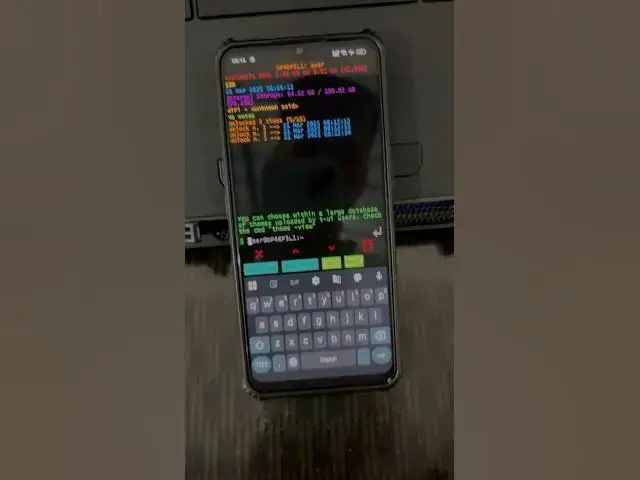

Give a cool look to your @android Phone #smartphone #techtips
Mar 21, 2025

App: https://sourceforge.net/projects/t-ui-linux-cli-launcher.mirror/
It's great you're looking to personalize your Android phone! Here's a breakdown of how to give it a cool, customized look, combining popular methods:
1. Revamp Your Home Screen with a Launcher:
* Why? Launchers provide extensive customization, from icon packs to gesture controls.
* Popular Choices:
* Nova Launcher: Highly customizable and feature-rich.
* Lawnchair: Offers a Pixel-like experience with added customization.
* Action Launcher: Known for its unique features like Shutters and Covers.
* How:
* Download your chosen launcher from the Google Play Store.
* Set it as your default launcher in your phone's settings.
2. Elevate Your Icons with Icon Packs:
* Why? Icon packs change the visual style of your app icons, creating a cohesive look.
* Where to Find Them:
* Google Play Store: Search for "icon packs."
* Look for packs with styles you like: minimalist, colorful, retro, etc.
* How:
* After installing an icon pack, apply it through your launcher's settings.
3. Transform Your Visuals with Wallpapers and Themes:
* Wallpapers:
* Find high-quality wallpapers on apps like Zedge or through Google's wallpaper app.
* Consider live wallpapers for dynamic backgrounds.
* Themes:
* Many Android phones offer built-in theme options.
* Check your phone's settings for "Wallpaper and style" or similar.
* Using the androids built in color palletes to make the phone look more cohesive.
* Dark Mode:
* Enable dark mode for a sleek look and to reduce eye strain.
* Schedule it to turn on automatically at night.
4. Customize Widgets:
* Why? Widgets provide quick access to information and add visual interest.
* Popular Widget Apps:
* KWGT Kustom Widget Maker: Create highly customized widgets.
* Many apps have their own widgets, like weather apps, or music apps.
* How:
* Long-press on your home screen and select "Widgets."
* Choose and place your desired widgets.
5. Notification and Quick Settings Customization:
* Notification Shade:
* Apps like "One Shade" allow you to customize the look and functionality of your notification shade.
* Edge Lighting:
* Some phones have edge lighting options, that can be customized to give cool notification effects.
* Settings:
* Explore your phone's notification settings for options like notification styles and priority.
Key Tips:
* Consistency: Aim for a consistent visual style across your home screen, icons, and wallpapers.
* Minimalism: A clean, minimalist setup can often look the most stylish.
* Personalization: Ultimately, the best look is one that reflects your personal preferences.
By following these tips, you can give your Android phone a unique and stylish look.
Android customization, phone aesthetics, smartphone themes, home screen setup, icon packs, Android launchers, mobile personalization, widget customization, Android visual tweaks, phone styling, mobile UI, Android tips, tech customization, digital aesthetics, mobile design.
Show More Show Less