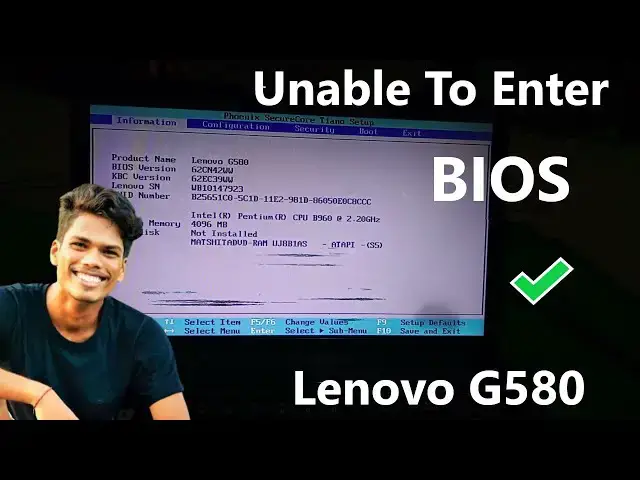

How to Enter the BIOS on a Lenovo G580 Laptop | Lenovo G580 BIOS Access: Step-by-Step Guide @OnTeque
Oct 28, 2023

If you're having trouble entering the BIOS on your Lenovo G580 laptop, here are some steps you can follow to access it:
Shut Down Your Laptop: Ensure your laptop is turned off completely.
Press the Correct Key: When you turn on your laptop, you need to press the appropriate key to enter the BIOS. For Lenovo laptops, the common key to access the BIOS is typically one of the following: F2, F1, F12, or the Delete key. Some newer Lenovo laptops may use the Novo button (a small button usually located next to or near the power button) to access the BIOS. Try pressing one of these keys or the Novo button immediately after turning on your laptop.
Keep Pressing the Key: Sometimes you need to press the key repeatedly or hold it down as soon as you turn on the laptop. So, try this multiple times.
Fast Boot: If your laptop has Fast Boot enabled, it might skip the option to enter the BIOS. You can disable Fast Boot in the BIOS settings. To do this, you'll first need to enter the BIOS (using the method described above), and then look for an option related to Fast Boot. Disable it, save changes, and exit the BIOS.
UEFI Firmware Settings: On some newer systems, you might need to access the UEFI firmware settings rather than the traditional BIOS. The process is similar. Once you're in the BIOS, look for an option to switch between UEFI and Legacy mode, or access the UEFI firmware settings.
BIOS/UEFI Password: If your laptop has a BIOS or UEFI password set, you'll need to enter the password before you can access the BIOS. Make sure you know the password if one is set.
Check the User Manual: If none of the above methods work, consult your laptop's user manual or visit Lenovo's support website for specific instructions on how to enter the BIOS for your particular model.
Hardware Issue: If you've tried all of the above and still can't access the BIOS, it's possible there is a hardware issue with your laptop. In this case, you may need to contact Lenovo's customer support or a technician for assistance.
--------------------------------------------------------------------------
Join this channel to get access to perks:
https://www.youtube.com/channel/UCb3YS6TPaRWJPXsi0Lut3yA/join
Instagram https://www.instagram.com/_onteque/
Facebook https://www.facebook.com/onteque
Blogger-1 https://onteque.blogspot.com/
Blogger-2 https://thebioticworld.blogspot.com/
Blogger-3 https://aatmjivani.blogspot.com/
-----------------------------------------------------------------------
Here some video title
"Lenovo G580 BIOS Access: Step-by-Step Guide"
"How to Enter the BIOS on a Lenovo G580 Laptop"
"Unlocking Lenovo G580 BIOS: Quick and Easy Tutorial"
"Mastering the BIOS on Your Lenovo G580"
"Lenovo G580 Boot to BIOS: A Comprehensive Tutorial"
"Trouble Accessing BIOS on Lenovo G580? Here's the Fix!"
"The Ultimate Guide to Lenovo G580 BIOS Configuration"
"BIOS Secrets: Lenovo G580 BIOS Setup Demystified"
"Lenovo G580: Unleash the Power of BIOS Settings"
"Cracking the Code: Lenovo G580 BIOS Entry Explained"
Some keywords
Lenovo G580 BIOS, BIOS access Lenovo G580, Lenovo laptop BIOS setup, Lenovo G580 system configuration, Entering BIOS on Lenovo laptop, Lenovo G580 boot options, BIOS settings tutorial, BIOS setup guide, Lenovo G580 firmware access, BIOS configuration for beginners, Lenovo laptop troubleshooting, System setup on Lenovo G580, How to change BIOS settings, Lenovo BIOS navigation, Firmware configuration Lenovo, Legacy vs. UEFI BIOS on Lenovo G580, Lenovo G580 system preferences, BIOS password Lenovo G580, Low-level system configuration, Lenovo BIOS tips and tricks.
#LenovoG580
#BIOSAccess
#LaptopSetup
#SystemConfiguration
#BIOSGuide
#FirmwareSettings
#LegacyUEFI
#LenovoLaptop
#TechTutorial
#PCConfiguration
#HardwareSettings
#SystemMaintenance
#ComputerTips
#BIOSPassword
#LowLevelConfig
#TechSupport
#Troubleshooting
#LenovoSupport
#BIOSNavigation
#LearnTech
Show More Show Less